
At the beginning of my second year at university, I decided to buy a used ThinkPad. Since our professor used Linux to teach, I decided to finally use Linux on a physical machine. A year later I bought an SSD, so I reinstalled the OS, but I had a specific set of tools that I use on this programming laptop. I can definitely say that I used Linux almost exclusively for programming for a great while, before buying a PC, beacuse some programs we used at University were Windows only.
But the good news: The Chief Data Scientist at my job also works from a Linux machine, so everything we use is compartible with both systems…meaning an easy entry point, which I will might take after the licence of Windows 10 ends (yes, PC supports it, and I already use Windows 11 on my laptop, which only has it as the laptop has some features that would be hard to use under Linux). So expect some Linux content from me…
For this article, I’m going to start from the distros and gradually move towards specific tools.
Lubuntu – the classic Ubuntu entry
It is a version of Ubuntu that uses the featherweight LXQT desktop environment to keep resource usage as low as possible, because ideally, when you program you want to keep as many resources as possible for tools. If you have researched this topic, you might be curious about why coders use Ubuntu, I can give you my reasons:
- My teacher used Ubuntu
- It gives me a great compromise between newer software and stability.
At the moment of writing this, the most recent LTS version of (L)Ubuntu is 24.04, the next will be 26.04 (meaning the relase year is 26 and the month is April)
Thinking of opting for Lubuntu? Click HERE to visit their official website!

Lubuntu 24.04 LTS
Nobara – tweaked (not just) for gamers
Nobara is a Fedora-based distribution, meaning, that it uses the rpm package manager as opposed to the apt of Debian, or the pacman of Arch. Tweaked for gamers, it comes packaged with several performance tweaks, and my game changer: an installer with the Nvidia drivers pre-loaded… You could say it’s a tweak for gamers, but I use CUDA quite often for work, so having the essentials set up is great!
It comes with a customized KDE Plasma, but you can opt for Gnome or Vanilla Plasma too. This means your system will use a bit more resources, than an Lxqt would, but for my PC, it is a sensible tradeoff. At the time of writing, this is the distro I will most likely go for, if I make the switch.
Want to take Nobara for a spin? Click HERE to visit their official website!

Nobara Linux with the tweaked KDE Plasma
CachyOS – Arch with ultra speed
At the time of writing, CachyOS, a modified Arch-based distribution is the leader on distrowatch.org (for newbies, a linux forum & website).
According to their website: „CachyOS features the optimized linux-cachyos kernel utilizing the advanced BORE Scheduler for unparalleled performance.”
I saw it with my own eyes how performant this OS is on all kinds of hardware and it seriously has something extra, not just a pretty desktop and thats it, but real features.
During install, you can choose from a ton of Desktop Environments and Window Managers (both X11 and Wayland), such as: KDE Plasma, GNOME, XFCE, i3, Wayfire, LXQt, Openbox, Cinnamon, COSMIC, UKUI, LXDE, Mate, Budgie, Qtile, Hyprland and Sway.
If you are serious about performance and are okay with the quirks of an Arch-based distribution, I think you should definitely give CachyOS a go!
Want to give CachyOS a go? Click HERE to visit their official website!

Cachy OS with KDE Plasma
Which distro will you go for?
The safe and friendly Lubuntu? The out of the box experience of Nobara? The blazingly fast CachyOS? Whatever your choice will be, it will be yours and you really can’t go wrong with either one…
Best linux programs for coding
Qterminal – the essential
It is the default terminal that comes with Lubuntu and has the features of any other terminal, but my particular favorite is the „-d” flag, which allows you to run it as a dropdown terminal. I set it up to run on startup, so I have a terminal up and running right away, I can invoke it with F12, and also hide it with the same key. If you want it full screen, use F11.
Another popular choice can be Yakuake, but that’s „just” a drop-down terminal, while Qterminal has a „normal” mode as well.
Midnight Commander – Terminal file management
It is a TUI file manager, like Total Commander in the command line, which I mostly run from Qterminal. It has shortcuts to create folders, and also has a line to execute commands (I have a small program, that scaffolds a hello world for a few programming laguages and I run it from here). It’s pretty simple, but great, I definitely recommend it if you like using the terminal, but want something a bit more verbose, than using the shell in itself.
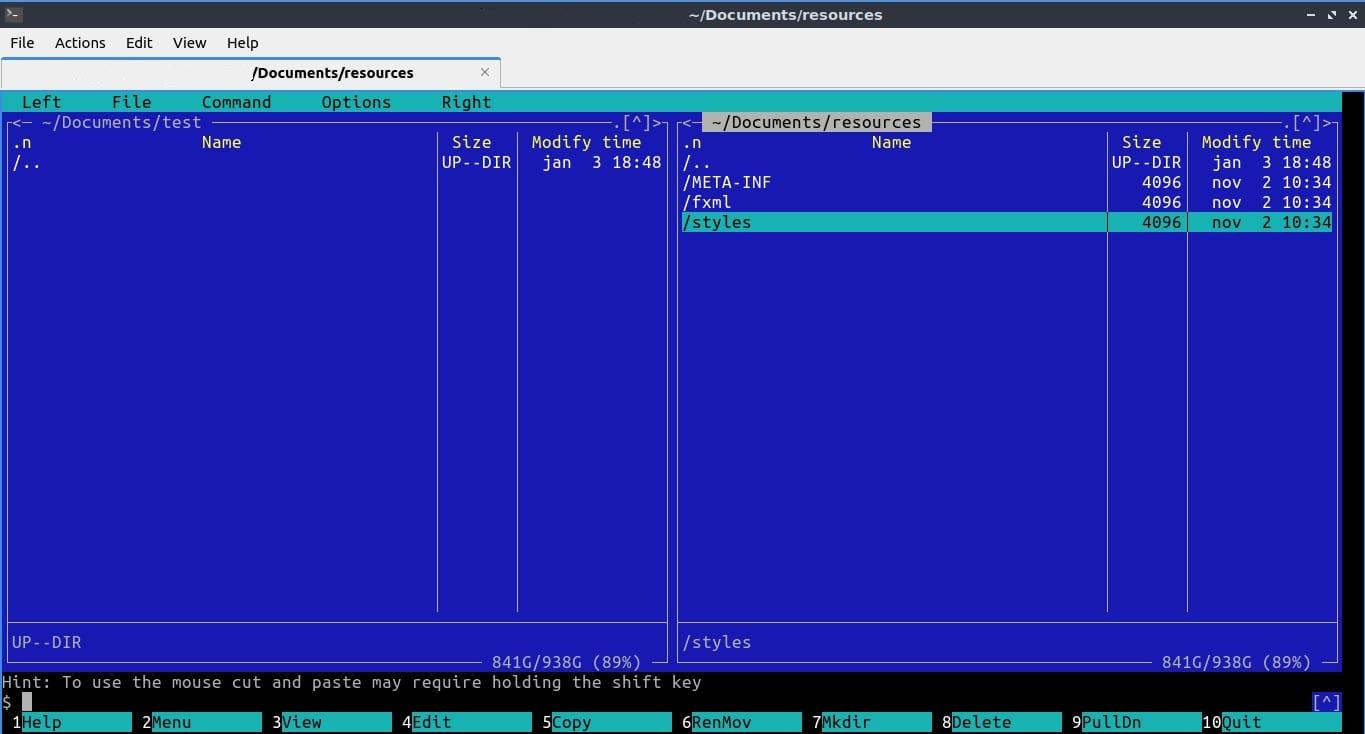
Midnight Commander Running in Qterminal
Nala – APT on Steroids
I first heard about Nala in this post and have been using it ever since. It’s basically a Python wrapper for apt, allowing the user to choose multiple mirrors, allowing parallel downloads, not to mention a much better UI compared to vanilla apt. If you follow the instructions in this post, you can even alias it, so if you type „sudo apt install cmatrix”, it will run „sudo nala install cmatrix” instead, so you don’t accidentally use apt instead of nala. To be honest, I just got used to using the latter command, so I just use nala install.
If you choose to go for Lubuntu from the distros mentioned above (or any Debian-based distro), I think this is a must have upgrade.

A Nala screenshot, from the project’s GitLab
Visual Studio Code – the standard code editor
One of my favorite code editors. It is fairly fast, but for me, its extensibility is the real game changer. I can work with Jupyter Notebokks from inside it, and can edit Python files in the same tool, but having great code checking for both. You can even do stuff like screenwriting with it (more HERE)! So, for doing data science, I think you’ll might fell in love with VSCode.
Also, it is quite literally the whole package: code editor, Jupyter Notebook support without starting a kernel beforehand, built-in terminal, even pdf support via extensions. Forgot a Python module you need? Ctrl + J opens up the integrated terminal, you run a quick pip/conda install and all done. I love how I can do all my task from one single application. (You can even access LLMs via extensions, or go for Cursor, a VSCodium fork with built-in LLM support)
If you plan to write programs in multiple programming languages, you should definitely give VSCode a try!
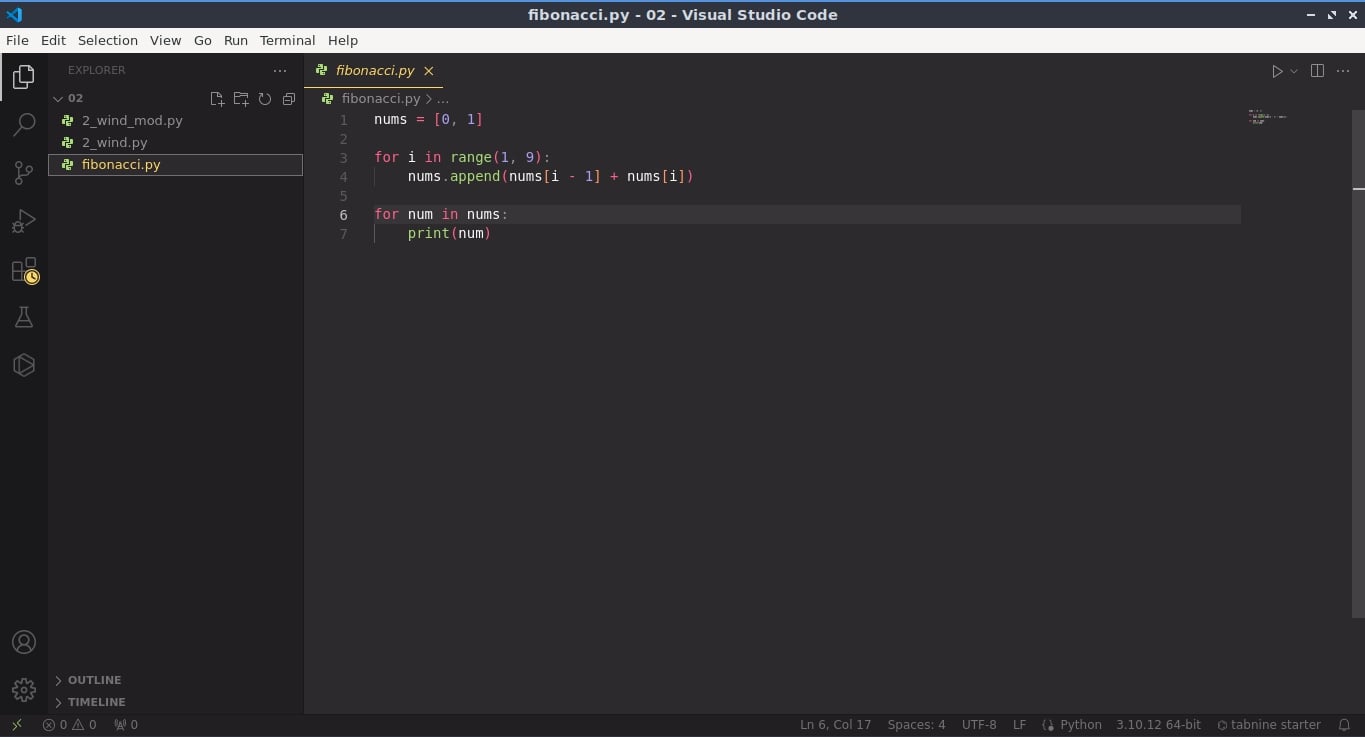
Visual Studio Code’s UI
NeoVIM – for in-terminal editing
Sometimes, when I use linux, I do modify some configuration files… Sometimes, I forget to add something small to a file, but VSCode is already closed…
That’s where NeoVIM comes in. It is a modernized fork of the classic VIM, with some extras and user-friendly tweaks. Honestly, exiting VIM is not that big of a deal, if you learn its philosophy, you’ll be able to use it just fine. It is faster to upen, than VSC, and let’s be honest, it’s easier to stay in the terminal, if that’s where you searched for a given file.
Yes, it might take some time to get used to it, but it can become a great tool for quick edits (too).
You can use these tools to set up a Linux-based development environment on your machine. Note that my workflow tends to use the terminal quite a bit, if you don’t want to use it, you don’t have to, but I find it more versatile that way.
Thank you for reading my article, if you’re interested, stay tuned for my future posts on Visual Studio code extensions, or my favorite Python modules for data science.
Have a nice day and don’t forget to keep programming consistently!